Black Friday 2026
18TB Hard Drive Black Friday Deals UK 2026
Prices checked
Amazon UK’s 2026 Black Friday sale runs from 19 to 30 November. Black Friday is 27 November. Prices below come from the latest available listing checks.
As an Amazon Associate we earn from qualifying purchases. Prices and availability come from Amazon.co.uk as of the last update and may change.
An 18TB hard drive makes most sense when you want high capacity in a small number of bays, but the real buying question is not just how much data it can hold. If you are moving several terabytes onto each disk, you should also think about rebuild time, restore planning, backup windows and whether your NAS or PC can comfortably cope with a large drive becoming unavailable. The best choice is the one that matches your enclosure, your interface, your redundancy setup and how long you are willing to wait if a disk needs replacing.
Matching Amazon UK listings
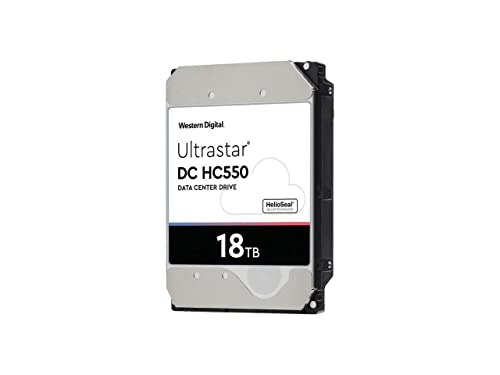
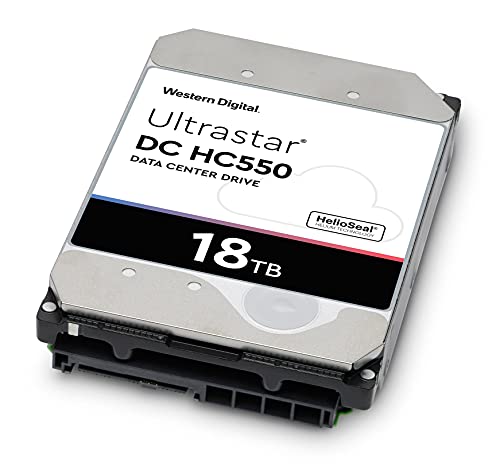


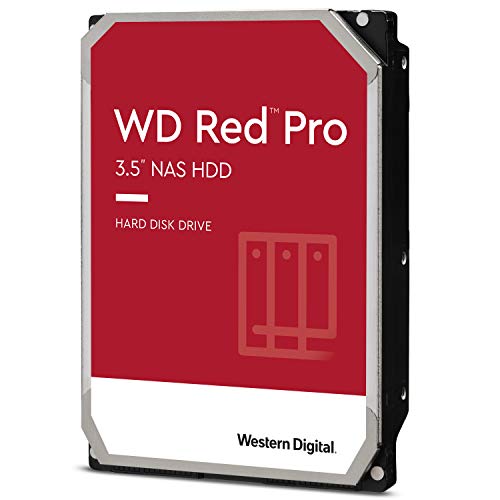


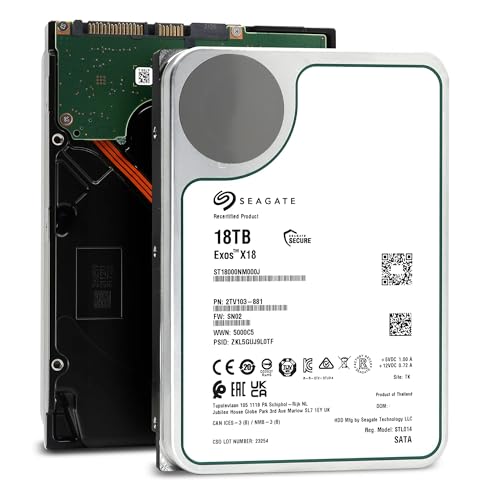


The listing’s condition and last check are shown on each row. Prices and availability may change at checkout.
Is it really a deal?
No recently checked listing has reached our recorded low. We compare the same Amazon listing and condition against earlier prices we recorded. Near our low means within 3% of that low. An Amazon reference price shows the retailer’s comparison figure. Check the retailer for any current promotion or access requirements.
Start with the job you need the drive to do
An 18TB drive is usually chosen for bulk storage, media libraries, backups or a NAS pool where bay count matters. It can be a sensible step up if you are replacing several smaller disks and want to simplify management, but it is not automatically the best value for every system. If your needs are modest, a 10TB, 12TB or 14TB drive may be easier to budget for and quicker to mirror or restore. If you are building a larger array and expect to keep expanding, 22TB or 24TB options may reduce the number of future upgrades, although the upfront cost will usually be higher.
The key tradeoff is capacity concentration. The more data you place on one disk, the more important it becomes to have another copy elsewhere. With an 18TB model, a full restore after failure can take a long time even on a fast network, so you should not rely on RAID alone as your only protection. RAID can keep a system online, but it does not replace a separate backup of the files you cannot lose. For a home user, that often means the drive is best used in a NAS with a second copy on another disk, another NAS or external storage.
Check the interface, bay type and controller support
Before buying, confirm that your device accepts the drive type and connection. For a standard desktop or NAS hard drive, verify whether the enclosure uses SATA, whether the bay size is 3.5-inch, and whether the system supports the full capacity you are planning to install. Manufacturer specifications should state the supported interface, form factor and any capacity limits imposed by the NAS chassis, backplane or RAID controller. Do not assume every USB enclosure or older motherboard will handle very large disks correctly without a firmware update or controller change.
If you are comparing a NAS drive against a desktop HDD, check whether the listing and manufacturer page mention NAS use, workload expectations or vibration management. Those details matter more in multi-bay systems than in a simple single-drive desktop. If your goal is a direct-attached setup rather than network storage, a DAS can be a better fit than a NAS because it is simpler and often cheaper for one computer. A NAS becomes the better choice when you want shared access, multiple users or always-on storage. If you only need one large local archive, a DAS may save you money and complexity.
Plan for rebuilds, restores and downtime before you fill the drive
When a large drive fails, the replacement process is more demanding than with smaller capacities. A rebuild in a redundant array may take a long time, and during that period the system can be under extra stress. That does not mean large drives are a bad idea, but it does mean you should be realistic about how much downtime you can tolerate. If the data is important, keep a backup strategy that you can actually restore from, not just a RAID plan on paper.
A practical example helps. If you are moving video projects, photos and archives onto one 18TB disk, think about what happens if the disk becomes unreadable. Can you re-download the files? Can you restore from cloud backup? Is the second copy on another drive at home? If the answer is no, you may be better off splitting the data across two smaller drives, or using a mirrored pair if bay count allows. This is where 16TB or even 12TB options can sometimes be easier to recover from, because each restore is smaller and may be less disruptive.
Also consider how you will migrate data. If you are copying several terabytes onto the new disk, allow enough time for verification, not just the file transfer itself. A rushed move increases the risk of leaving an incomplete archive on a single large drive. For a new NAS array, set aside time to test drive detection, SMART reporting and a sample restore before you trust the setup with the only copy of anything important.
Balance total system cost, not just the sticker price
An 18TB hard drive should be judged as part of the whole storage system. The drive itself is only one cost. You may also need a NAS enclosure, extra bays, a stronger controller, more backup space and perhaps a UPS if you want safer shutdowns during power loss. If you are comparing price per terabyte, do it alongside those wider costs. A larger drive may look efficient on paper, but if it forces you to buy a new chassis or replace your backup target, the real spend rises quickly.
This is where the alternative sizes can be useful. A 10TB or 12TB drive can be easier to slot into an existing setup if you are working within an older system or a tighter budget. A 14TB or 16TB model may be a middle ground if you want high capacity without concentrating as much data on each disk. If you are planning a fresh build and know you will keep expanding, 22TB or 24TB may be worth checking, especially if you want to reduce the number of bays used over time. For a sibling page focused on smaller capacity, 4TB is usually better for lighter storage jobs and short-term external backups rather than a large archive.
How to verify the right model before you buy
Use the manufacturer page and the retailer listing together. Check the exact capacity, interface, rotational speed if stated, cache if stated, physical dimensions, and whether the drive is intended for NAS, desktop or surveillance use. If any detail is missing from the listing, look it up directly on the maker’s site before ordering. That is especially important if you need a specific series for array compatibility or if your NAS vendor only approves certain models.
Also check the line in the listing that identifies the product family, not just the capacity. An 18TB label alone does not tell you whether the drive is designed for multi-bay use, how it behaves in a RAID, or whether it is shingled or conventional recording. If the specification is not clear, treat it as a sign to pause and confirm. This is the safest way to avoid a mismatch between your storage plan and the hardware you actually receive.
Frequently asked questions
Is an 18TB hard drive a good choice for a NAS?
It can be, especially if you want lots of capacity in fewer bays. The better question is whether your NAS supports the drive, whether you have a backup plan, and whether you are comfortable with longer rebuild and restore times.
Should I choose 18TB over 16TB or 22TB?
Choose 16TB if you want a slightly smaller restore burden or a simpler step up from an existing array. Choose 22TB if you are building for growth and want to use fewer bays over time. 18TB sits in the middle when you want high capacity without going to the top end.
Do I still need backup if I use RAID?
Yes. RAID can help keep storage available after a drive failure, but it is not a substitute for a separate backup. If the data matters, keep another copy somewhere you can restore from.
How do I check if my device will support the drive?
Look at the manufacturer specifications for the enclosure, NAS or controller, and match them against the drive’s interface, form factor and capacity. If the seller listing leaves out a detail, verify it on the manufacturer site before buying.