Black Friday 2026
NAS SSD Black Friday Deals UK 2026
Prices checked
Amazon UK’s 2026 Black Friday sale runs from 19 to 30 November. Black Friday is 27 November. Prices below come from the latest available listing checks.
As an Amazon Associate we earn from qualifying purchases. Prices and availability come from Amazon.co.uk as of the last update and may change.
NAS SSDs can be a very different buy from a standard internal SSD. The first question is not capacity or headline speed, but whether the drive is approved by your NAS maker and whether you plan to use it for storage, read cache or write cache. Those roles place very different demands on the drive and, in some systems, they also need specific bays, M.2 slots, PCIe adapters or expansion cards. Before buying, check the NAS compatibility list, confirm the interface and form factor in the manufacturer specs, and then compare endurance figures such as TBW or DWPD if the drive will see heavy writes. For lighter use, a general purpose NVMe SSD may be enough. For cache or always-on storage, a NAS-focused model is usually the safer choice if it is explicitly supported.
Matching Amazon UK listings


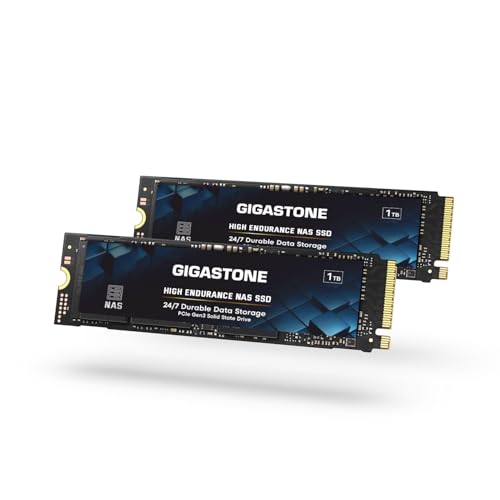
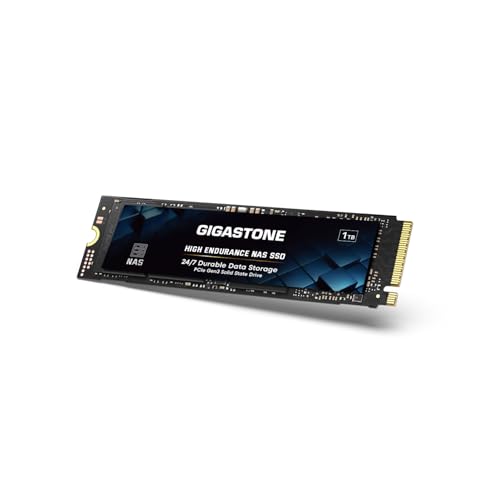

The listing’s condition and last check are shown on each row. Prices and availability may change at checkout.
Is it really a deal?
18 listings are at or near our recorded low. We compare the same Amazon listing and condition against earlier prices we recorded. Near our low means within 3% of that low. An Amazon reference price shows the retailer’s comparison figure. Check the retailer for any current promotion or access requirements.
Start with the NAS compatibility list, not the capacity label
Your first filter should be whether the SSD is listed as supported by the NAS vendor for your exact model or series. NAS platforms often accept only certain SATA 2.5-inch SSDs, M.2 NVMe drives, or specific expansion modules. A drive can be physically compatible but still unsupported for cache features, temperature monitoring, slot detection or firmware alerts. That matters because the same SSD may work as storage while being blocked or limited for cache.
Check the NAS manufacturer’s support page for the model number, firmware notes and any restrictions on which slots can host SSDs. If the system has both drive bays and M.2 slots, make sure you know whether the SSD is meant to sit in a bay, an onboard slot, or an add-in card. Some NAS units use M.2 for cache only, while the main bays are for SATA drives. Others allow SSD volumes in the bays, but not every bay arrangement supports the same RAID options.
Decide whether the SSD is for cache, tiering or a storage volume
The best NAS SSD choice depends on its job. Cache is used to accelerate access to frequently used data, so it benefits from low latency and, in write-cache use, strong endurance. A storage volume is different: it is the place where files live, so capacity, sustained writes and reliability matter more than short bursts of speed. If your NAS supports SSD tiers or all-flash volumes, you should check whether the SSD is intended to carry the full workload or only a subset of hot data.
For read cache, endurance is still worth checking, but write cache is the stricter case because the drive may absorb frequent small writes. If the NAS supports a dedicated write-back cache feature, the vendor may require mirrored cache drives or a battery-backed setup. If you only need faster boot times, VM scratch space or a small project folder, a modest capacity SSD with the right interface may be enough. If you want the NAS to hold primary data on SSDs, prioritise higher capacity and endurance together, not speed alone.
Compare endurance and controller details before you compare peak speeds
For NAS use, endurance is often more important than a big sequential speed figure. Look for TBW, DWPD, total bytes written, or the manufacturer’s workload rating. These numbers are not interchangeable, but they do tell you how much writing the drive is designed to tolerate. A larger capacity version of the same SSD family often has higher endurance than the smaller one, so it can be worth moving up a size if the NAS will handle constant backups, media indexing or virtual machines.
Also check the NAND type and whether the drive uses DRAM or a host memory buffer, but treat those as supporting clues rather than buying rules. What matters most is the official spec sheet and the NAS listing. If a drive is sold as a consumer NVMe model, such as the kind reflected by sibling pages like Kingston KC3000, Lexar NM1090 Pro or Lexar NM790, confirm whether your NAS maker actually approves it for your use case. Those drives may be fine in a compatible slot, but some NAS systems are selective about firmware, power behaviour or thermal limits.
Match the interface, thermals and cost to the slot you actually have
A common mistake is buying an NVMe SSD when the NAS bay only accepts SATA, or choosing a 2.5-inch SATA drive when the NAS only offers M.2 cache slots. Verify the connector, protocol and physical size. PCIe generation also matters in the sense of compatibility, but do not buy on the highest generation alone unless your NAS slot can use it. A PCIe 5.0 SSD may still operate in a slower slot, yet it may not deliver any practical benefit for typical NAS workloads.
Thermals are important too. NAS chassis can run enclosed and warm, especially with multiple drives active. Check whether the drive is meant to run with a heatsink and whether the NAS has clearance for one. If the slot sits under a cover or near other heat sources, a cooler-running drive can be a more sensible choice than a top-speed model. Finally, compare the cost of the SSD against the whole deployment. Two smaller SSDs in mirror for cache or storage may cost more than one larger drive, but they can suit the NAS’s supported layout and reduce the risk of a single-drive bottleneck.
When a different SSD type is the better buy
If your NAS cannot use SSDs in a supported cache or storage role, a normal SATA HDD or a larger NAS-approved HDD set may be the better value. If you mainly need a fast direct-attached drive for one PC or console, a DAS or USB SSD may be simpler than a NAS upgrade. If you want a high-capacity all-flash NAS volume, compare 3.84TB or 7.68TB SSDs, but only if your chassis, budget and backup plan can support that level of investment.
For small home NAS use, a 1TB or 2TB SSD may be enough for cache, apps or a project share. For heavier always-on storage or a virtualisation workload, larger capacities can be more practical if the endurance rating is also stronger. The right answer is the one that fits your slot type, the vendor’s compatibility list and the write load you expect over time.
Frequently asked questions
How do I know if an SSD is NAS approved?
Check the NAS maker’s compatibility list for your exact model and firmware line. Then match the SSD’s interface, form factor and any listed restrictions for cache or storage use. If the drive is not on the list, it may still work, but you should treat it as unverified rather than assumed support.
Should I buy a cache SSD or a storage SSD?
Buy cache SSDs when you want to speed up frequent access or metadata-heavy tasks and the NAS supports that feature. Buy storage SSDs when you want the NAS to hold data directly on SSDs. Cache puts more emphasis on endurance; storage puts more emphasis on capacity and overall workload fit.
Is NVMe always better than SATA for a NAS?
Not always. NVMe is faster in the right slot, but your NAS must support it and the workload must benefit from it. For simple file storage, backup jobs or light home use, a SATA SSD in a supported bay can be entirely sufficient.
What should I check on the product page before buying?
Look for the exact model number, capacity, interface, physical size, endurance rating and any firmware or temperature notes. Then compare that with the NAS vendor’s support page to confirm the SSD is suitable for the role you want it to perform.